From finished files -
to your Steam showcase.
SteamShowcase Helper helps move your finished showcase to Steam. Choose automatic upload or select the files yourself.
For Chrome and Chromium-based browsers. Install the extension separately from the website.
How do you want to upload?
Both routes use the same finished files. The difference is where you select them.
- Select files in a separate tab
- Upload in order without manual steps
- Select files yourself on Steam
- The extension helps set up the showcase
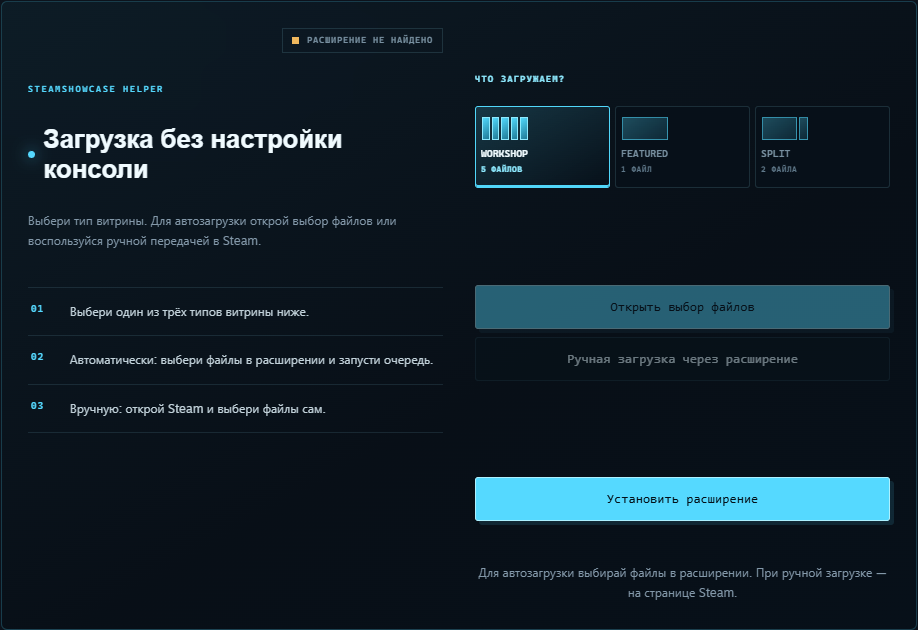
Install the extension once
- 01Open Chrome Web Store, click “Add to Chrome”, and confirm.
- 02Refresh your Showcase Maker tab after installation. You can pin the extension from Chrome’s puzzle icon.
- 03Sign in to Steam in the same browser. Then open Showcase Maker’s Steam tab.
 OPEN FULL SIZE ↗
First, prepare your finished files
After processing, Showcase Maker downloads a ZIP automatically. Unzip it: upload the numbered files, not the ZIP itself.
Select part_1, part_2 and so on in order. Do not upload auxiliary files such as full_original or preview. Each primary file must be 5 MB or less.
Automatic upload
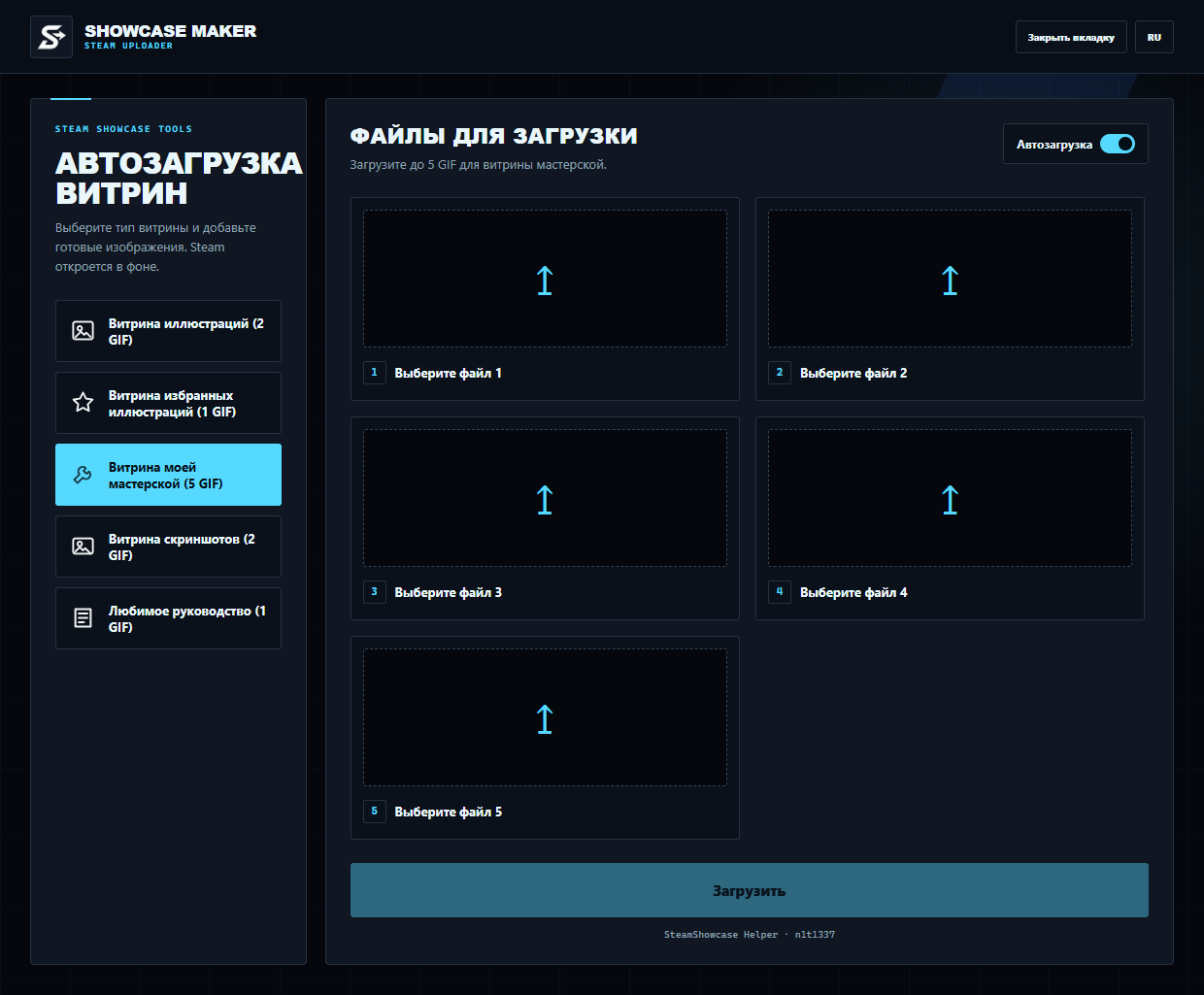
Select the finished files in the extension’s full-page tab; it then guides the upload.
- 01On the website, open “Tools → Steam” and choose Workshop, Featured, or Split.
- 02Click “Open file picker”. A full-page SteamShowcase Helper tab will open.
- 03Add the extracted part_1, part_2… files in order. Check that the file count matches the showcase type.
- 04Leave “Auto upload” on and click “Upload”. Keep the tab open while it works, then check the showcase in Steam.
 OPEN FULL SIZE ↗
Manual upload with the extension
Use this route if you prefer to select each file on Steam yourself.
- 01Unzip the finished ZIP and keep the numbered files nearby.
- 02In “Tools → Steam”, choose the showcase type and click “Manual upload via extension”.
- 03The relevant Steam page opens. Select the files yourself, in order: part_1, then part_2, and so on.
- 04Review the preview and save your changes on Steam. The extension helps apply long-showcase settings.
Common questions
The upload buttons are disabled
Check that the extension is installed and enabled, then refresh the Showcase Maker tab. A tab opened before installation may not detect it until refreshed.
The extension does not accept the files
Do not select the ZIP itself. Extract it and add the primary files in order. Each primary file must fit Steam’s 5 MB limit.
Steam did not open or the upload stopped
Make sure you are signed in to Steam in the same browser. Keep the extension tab open while uploading and retry. You can use the manual route instead.
Make your showcase. Follow the steps.
Process your files on the website, then return to this guide before uploading to Steam.